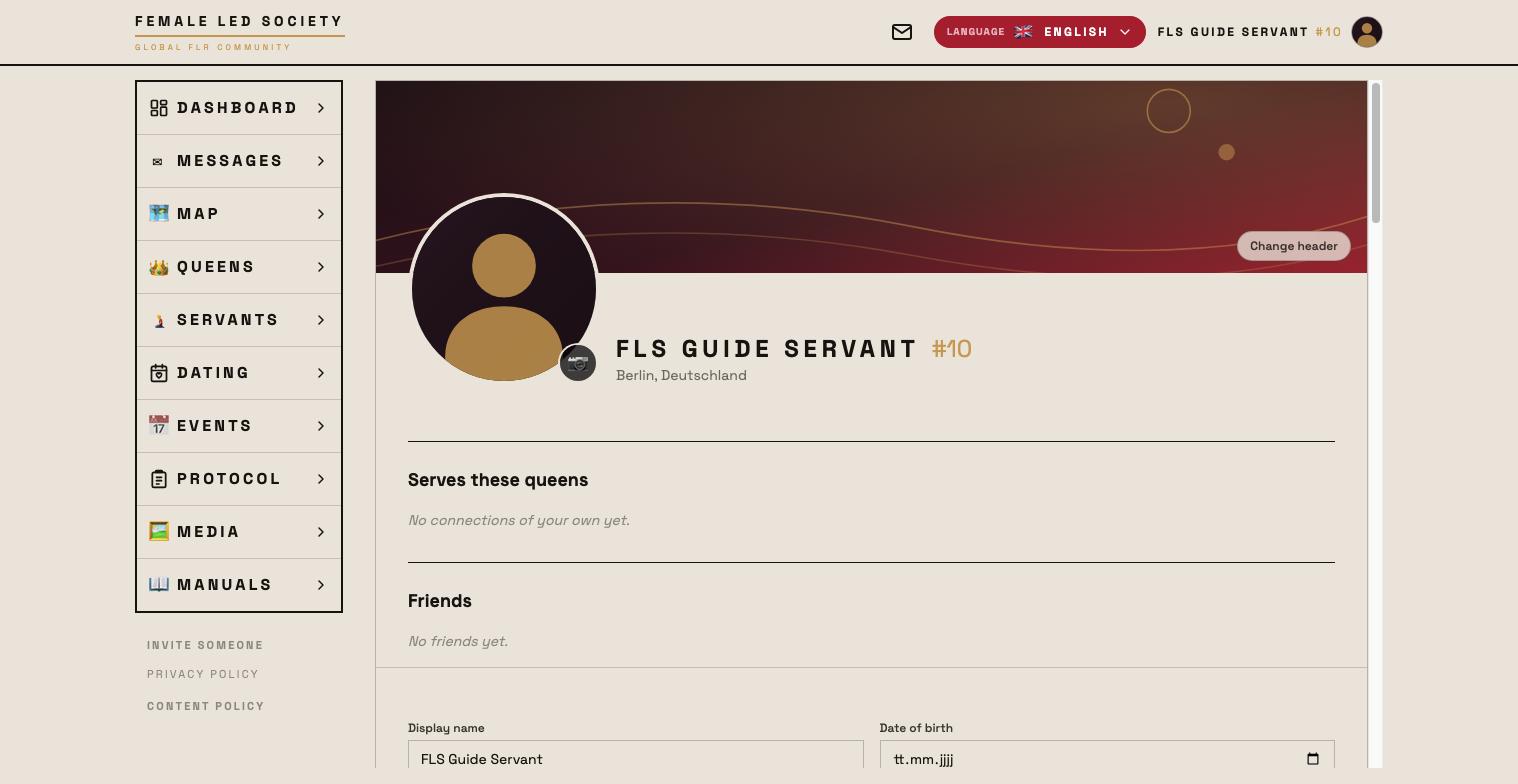
Your profile is what other members see of you — in the search lists, on the map and on your profile page. The more complete it is, the better search and getting in touch work.
This guide follows Submissive and Femdom from the First steps as they set up their profiles.
Note: The screenshots show the German interface — the layout is identical in every language.
Opening your profile
- Click your name or profile picture at the top right.
- Your profile page opens in edit mode — you can fill in every field directly.
There is no save button. Dropdowns and switches are applied immediately, text fields shortly after your last keystroke. The top right of the form then reads Profile updated at ….
The five tabs
The profile page is split into tabs. Only the first is your public calling card; the rest are tools and administration.
| Tab | What lives there |
|---|---|
| Profile | Basic details, location, preferences, profile text, profile card |
| Connections | Your queens or servants, and your friends |
| Media | Gallery with images, videos, audio — and your pages |
| Tasks & Goals | Your goals and tasks; for servants also the number series |
| Account | Notifications, calls, password, log out, delete account |
What a finished servant profile looks like
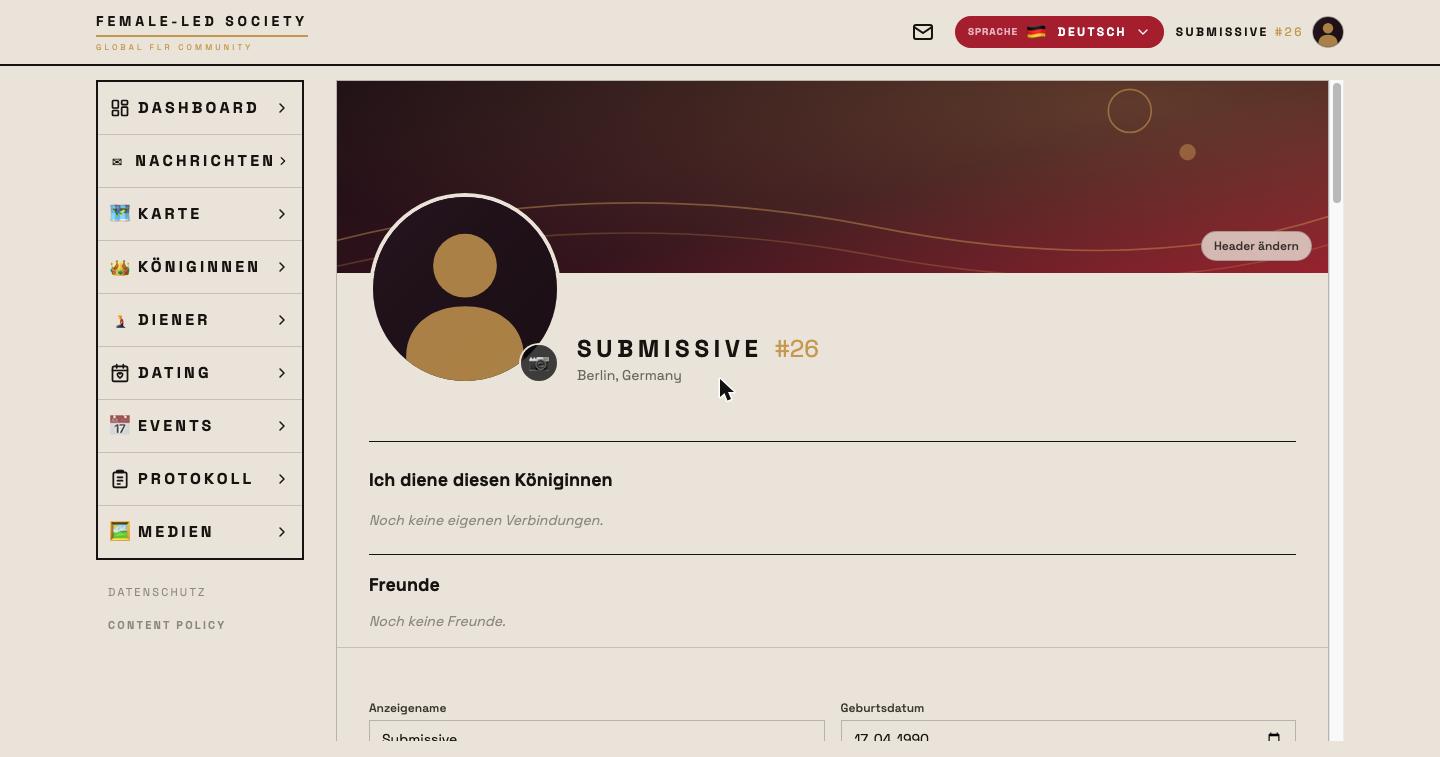
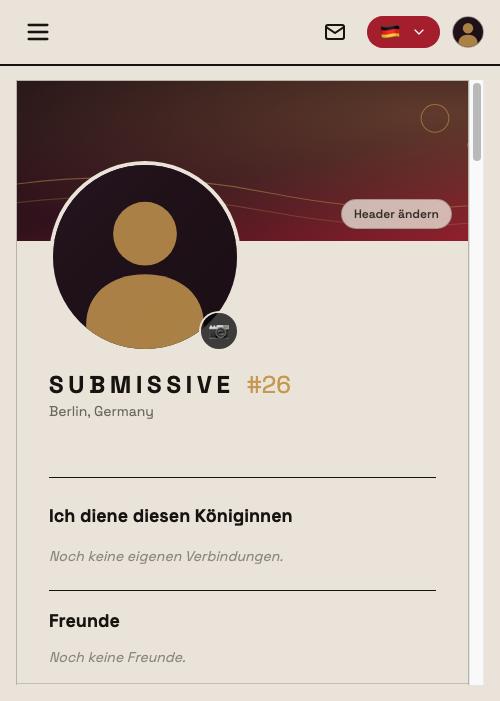
Filling in the basics
- Display name — the name other members see you under.
- Date of birth — not shown directly; others only see your age.
- Motto — a short line that appears on your profile and in lists. Submissive writes: “Serving is not a loss, it is a decision.”
- I am — your role: queen or servant.
- Sexual orientation, kids, smoking, alcohol — optional details that appear under “Details” on your profile page.
If you choose Servant, two more fields appear: Height (in cm) and Weight (in kg). Submissive enters 182 cm and 96 kg — figures his queen will later tie a task to.
Everything except the display name is optional. Decide for yourself how much you want to reveal.
Setting your location
Location matters: the search lists (queens/servants), the map, dating and events all sort by distance from you.
- In the Location area click Detect location automatically — or
- type your city or postal code into Enter place or postal code and pick the match.
Both choose Berlin. Only the place is stored, never your exact address.
Language
At the top right of the header you choose the language of the interface: German, English or Spanish. The choice applies immediately and is stored for your account.
Wishes and preferences
Below the basics sit two blocks of clickable keywords. A click switches a keyword on or off again; active ones are highlighted in red.
What the blocks are called depends on your role:
| Servant | Queen | |
|---|---|---|
| First block | Offered services | Desired services |
| Second block | Desired educational measures | Practiced educational measures |
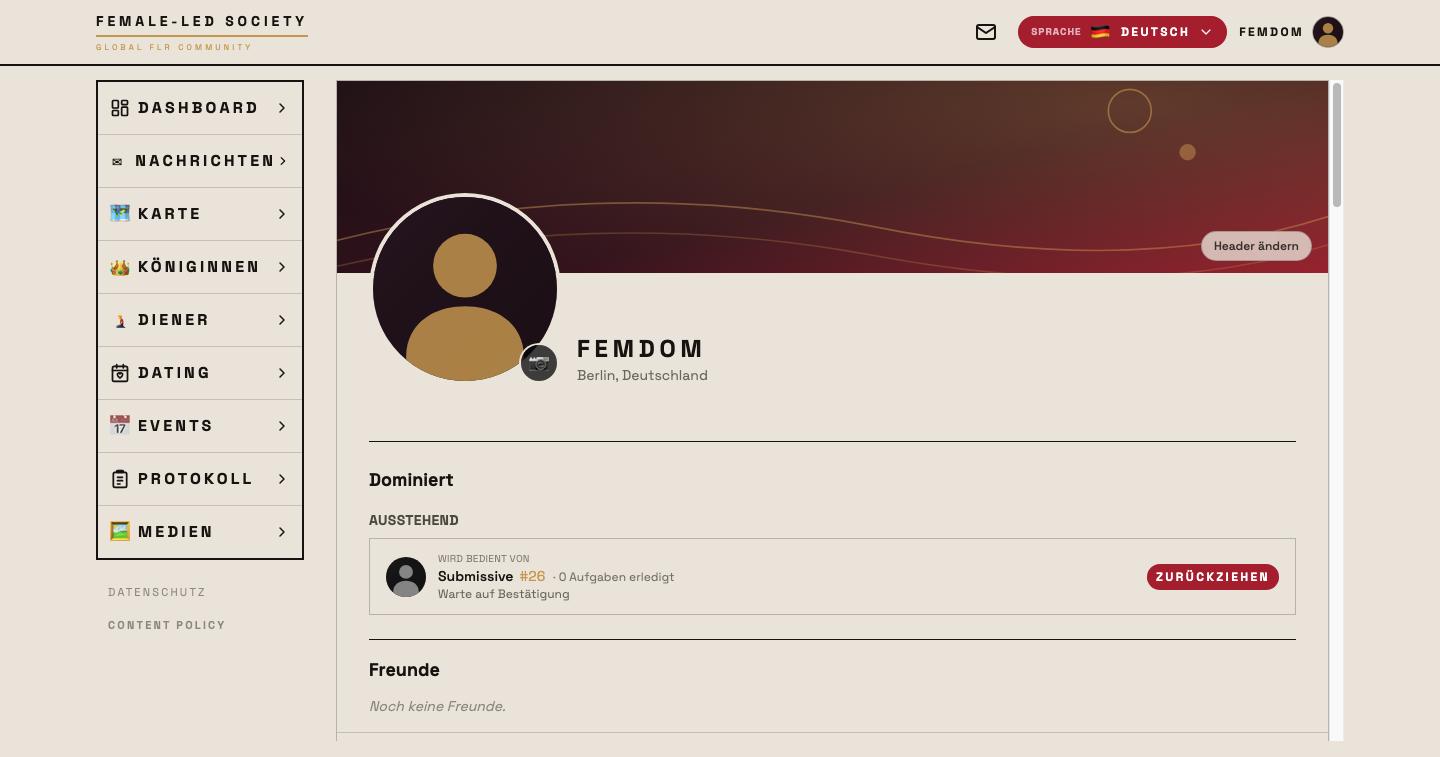
Submissive offers washing, cooking, ironing, housework and cleaning, and wishes for chastity, collar, foot worship and orgasm control. Femdom desires exactly those services and practices the same measures — which is how the two find each other.
Writing your profile text
The About me field is the one place where you write in your own words. It understands simple formatting: #, ## and ### at the start of a line create headings, *text* makes it italic.
Short sections work well. Submissive writes under the headings Who I am, What I offer, What I am looking for and What I am working on — the last one names his weight and his wish for control. Femdom structures hers into Who I am, How I lead, What I expect and What I offer.
Concrete sentences work better than lists of preferences — those are already sitting above as keywords.
What a finished queen profile looks like
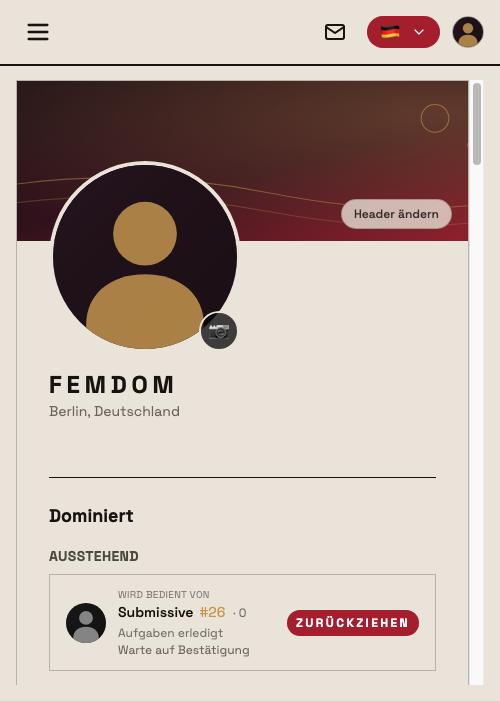
Profile picture and header
- Profile picture — click the round image placeholder and choose a photo. You adjust the crop while uploading.
- Header image — click Change header at the top right of the header area. The image can then be dragged with the mouse until the crop sits right.
The profile card
At the very bottom of the Profile tab sits Profile card. Create card turns your profile into an image with your name, profile details and statistics — orientation, height, weight, smoking, alcohol, services offered, goals, recurring tasks, rules, plus completed tasks, rating and connections. Anything you have not filled in is left out. Download saves it as an image.
The card also shows numbers only you normally see. Think about who you give it to.
Gallery: images, videos and audio
Your gallery lives in the Media tab. Use + Add photos, videos & audio — or drag and drop — to upload. While uploading you decide:
- Title and Description (both optional).
- Crop — for images a 1:1 crop, draggable and zoomable via slider.
- Position — servants only: assigns the image to a servant position. In the servants list that exact image can then be picked as the tile image via Preview image. Each position can only be assigned once.
- Approval required — see below.
- AI-generated media — mark anything created entirely or mostly by an AI. The AI label is visible to everyone.
You reorder by dragging. Albums group media together: pick an existing one under Album or create New album …; albums can be renamed and deleted — the media inside are kept and then appear under No album.
Your profile holds 25 entries in total — pages, images, videos and audio combined. Once it is full you have to delete something to make room.
The approval requirement
A medium marked Approval required is on the platform but covered up: viewers see Request access and have to ask you. The requests appear on your dashboard; you can also share directly in the chat via 🔑 Permissions (see Messages).
If you later switch the requirement off, the medium is open to all members. Because that changes who can see it, it goes back for review.
Review
Newly uploaded gallery media go through a short review. Until it is done the medium carries the label In review and is visible only to you. An administrator then approves it, sets it to Restricted (visible, but only after individual approval) or rejects it.
Pages
Also in the Media tab, below the gallery: Pages. A page is a longer, designed text — “like a letter”, with formatting, images and voice recordings.
- + New page.
- Title and Content. The toolbar offers bold, italic, strikethrough, links, bullet lists, numbered lists, quotes, alignment and three heading sizes — plus undo and redo.
- Insert image — upload one or pick from your gallery, with a caption.
- Record audio or Upload audio (MP3, M4A, WAV, OGG, WebM).
- Save as draft keeps your state; next time the editor offers to restore or discard it.
- Publish — the page is then visible to all members and also appears in the media feed.
Pages count towards the same allowance of 25 entries as images, videos and audio.
Account
The Account tab collects everything that does not belong on your profile.
Push notifications
Notifications on your lock screen, even when the app is closed. The top switch applies to this device and browser only — you need to enable it separately on your phone and computer. On iPhone and iPad it only appears once you have added the app to your home screen.
Below it you choose what you want to be notified about — this choice applies to all your devices:
- New message
- Task missed
- Connection request
- Friend request
- Media access request
The notification for a new message shows the sender and the first 100 characters — anyone looking at your screen can read along.
Email notifications
The same five events, additionally by email to the address you signed up with. Everything is off by default. The email never quotes a message and carries no name in the subject line — it only says that something is waiting for you. You can unsubscribe here or via the link at the bottom of every email. For messages we only write when you do not have the app open, and at most once per hour per conversation partner.
Calls
Allow audio calls and Allow video calls: anyone who enables this can be called by their chat partners. The same switches are reachable in the chat behind 🔑 Permissions.
Password, log out, delete account
- Change password — we send you an email; use the link inside to set the new password.
- Log out — ends the session.
- Delete account — permanently deletes your profile, including all images, tasks, messages, connections and other data. To confirm you type DELETE. This cannot be undone.
Next step
With a complete profile you are ready to discover other members: Finding members.