Messages is how you talk to other members directly and privately — with text, images and voice messages, and by call if you want.
Note: The screenshots show the German interface — the layout is identical in every language.
Inbox
- Open Messages in the left menu.
- The inbox lists every conversation, sorted by the most recent message. Unread ones carry a counter — it also appears as a red number on the menu entry and in the top bar.
- Click a conversation to open the chat.
The bin icon on a row deletes the whole conversation with that contact.
Starting a new conversation
- Open the profile of the member you want to write to.
- Click Send message at the top — the chat with that member opens.
Writing in the chat
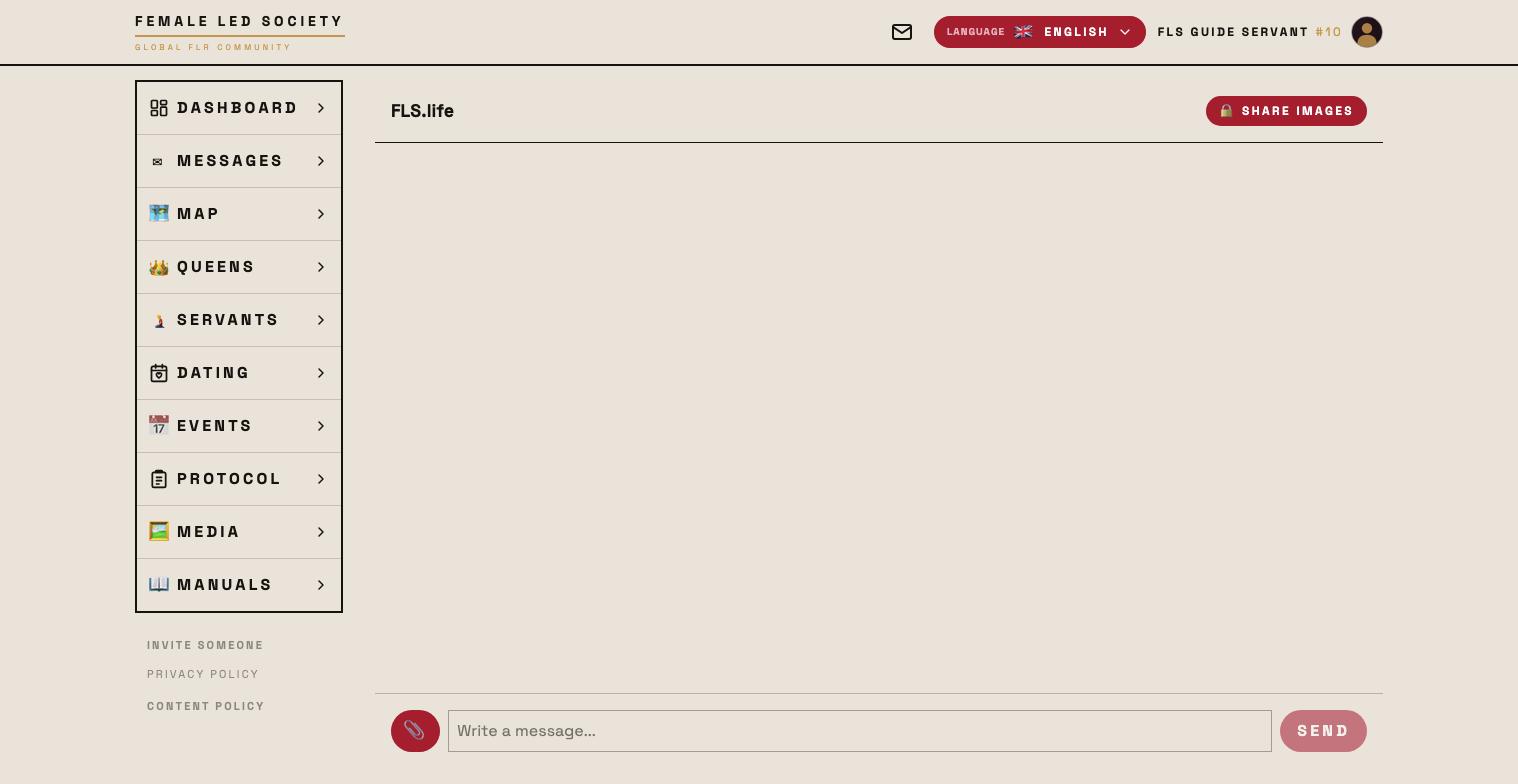
- Type your message into the “Write a message…” field.
- Send posts it.
- The paperclip icon attaches up to three images to one message. The preview above shows what will go out; each image can be removed beforehand.
- The microphone icon records a voice message. A second click stops the recording; it appears as a preview and goes out with the next Send. If the browser denies access it says Cannot access the microphone.
A green dot next to your counterpart's name means they are online right now. New messages appear on their own, without reloading the page.
Deleting individual messages
Every message carries a delete icon. Deleting is permanent and affects both sides — the other person's copy goes too. That is why it always asks first, and it cannot be undone.
Permissions — the key
At the top of the chat, behind 🔑 Permissions, sits everything about what this contact may see and how they can reach you.
Calls
Two switches: Allow audio calls and Allow video calls. They apply to your account, not just to this one conversation: anyone who enables them can be called by their chat partners. The same switches live in your profile under Account (see Setting up your profile).
Protected media
Below that, your gallery media with an approval requirement appear as thumbnails — each with Share or Lock, for this contact only. If you have no protected media, the panel tells you so.
The other way round, someone can also share on request: whoever clicks a protected medium in your gallery sees Request access; the request lands on your dashboard under Media access requests (see Media).
Blocking a member
If you don't want any more contact with someone, use the block. It sits at the very bottom of the other member's profile as Block member — after a confirmation it takes effect immediately, and in both directions:
- Neither of you can message or call the other any more; the existing conversation disappears from both inboxes.
- Neither of you can open the other's profile.
- An existing friendship or queen–servant connection is dissolved, pending requests included.
The blocked member gets no notification; to them your profile simply looks unavailable. You both stay visible in search, map, dating and events — only the click on the profile leads nowhere.
You can lift the block at any time: in your profile under Connections at Blocked members, or directly on the blocked profile. Messages and chat history return afterwards; a friendship or connection has to be requested again.
Calling
If your counterpart has enabled the matching permission and is online right now, two icons appear at the top of the chat: 📞 for an audio call and 🎥 for a video call. Without the permission, or while they are offline, they are not there.
- The person being called sees Incoming call with Accept and Decline.
- During the call you can mute yourself and turn the camera on and off; Hang up ends it.
- If it does not work, the display says why: Call declined, Busy, No answer, Not reachable or Calls not allowed.
A call and a video room are mutually exclusive — end the call and the room is available again.
Not missing anything
Whether you are notified about new messages — as a push notification on your lock screen or by email — is set in your profile under Account. Everything is off by default.