The Media area is the community's shared feed: images, videos, sounds and pages by members appear here — gallery images, for example, or proof from public tasks.
Note: The screenshots show the German interface — the layout is identical in every language.
Opening the media feed
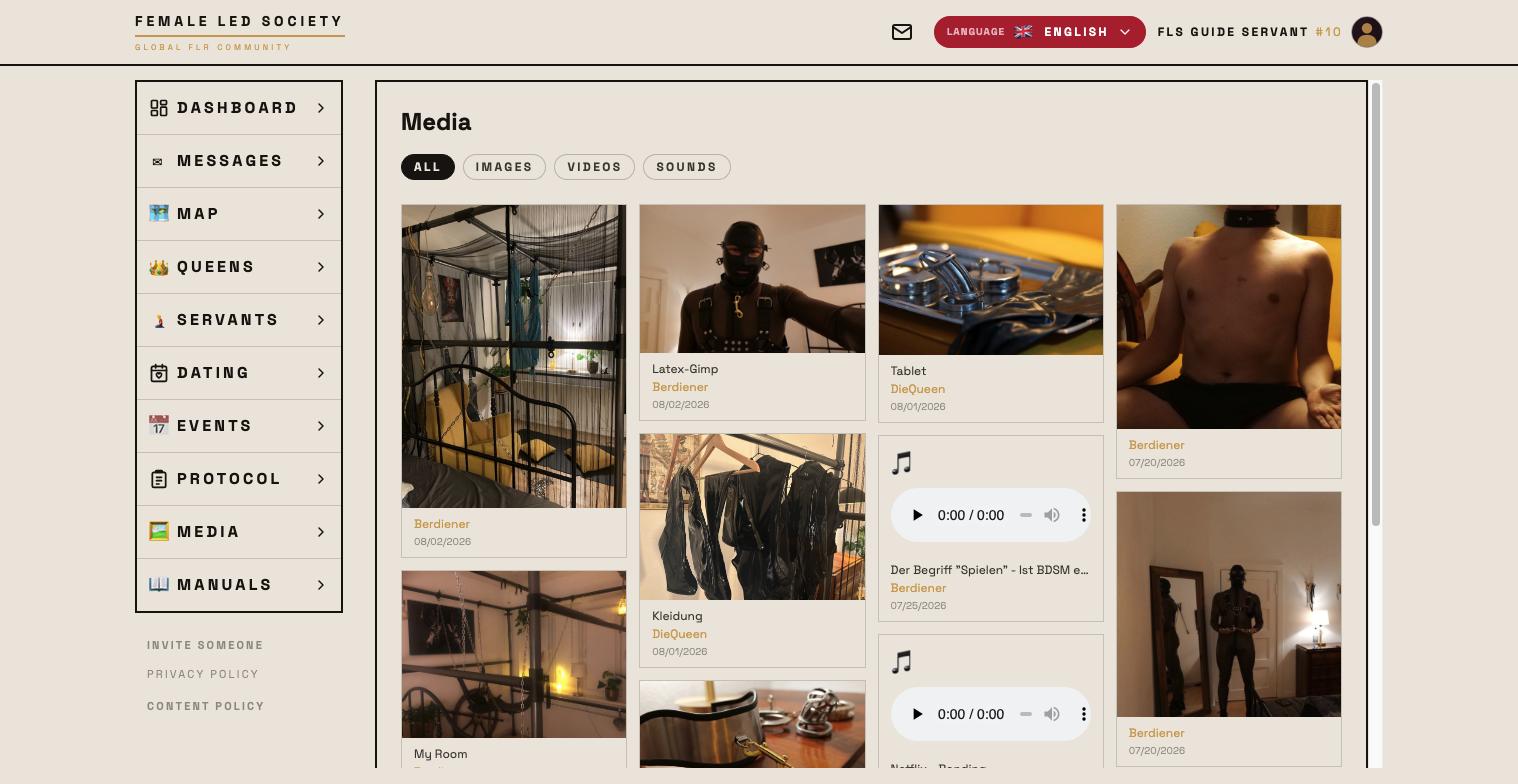
- Open Media in the left menu.
- The feed shows the latest contributions from all members as tiles — media and pages mixed, strictly by date, newest first.
- Videos and sounds play right in the tile.
- Clicking an image takes you to the creator's profile — the feed is for discovering; looking closely happens in the gallery.
- Clicking a page tile opens the page.
- Show more at the bottom loads further entries.
Filtering by media type
The tabs at the top filter the feed:
- All — the complete feed.
- Images — photos only.
- Videos — videos only.
- Sounds — audio recordings only.
- Pages — the written pages of members (see Setting up your profile).
The AI label
If a tile carries the AI marker at the top left, the creator has marked the medium as created entirely or mostly by an AI.
What does not show up here
Two independent locks keep media out of the feed — both have to be open:
- Protected media. Anything a member marked Approval required never appears in the feed. You only meet such media in the gallery on a profile, covered up and with a Request access button.
- Unreviewed media. Fresh uploads go through a short review first. Until an administrator approves them, only the creator can see them.
Also not in the feed: images and audio recordings that sit inside a page. They belong to their page and appear with it.
Requesting protected media
If you come across a covered-up medium in a profile gallery:
- Click Request access — the state changes to Requested.
- The request appears on the creator's dashboard under Media access requests, where they confirm or decline it.
- After approval the medium is visible to you. If declined it says Declined.
The other way round you can share without waiting for a request: in the chat via 🔑 Permissions, per contact and per medium (see Messages).
Rating images
In a profile gallery a click opens the image at full size. There you can give a rating from 1 to 10; above it you see how many ratings there already are. Each person rates an image once — a later rating replaces the earlier one.
Your own media
You manage your own images, videos, audio and pages in the Media tab of your profile (see Setting up your profile). That is also where you decide what requires approval and sort things into albums — keeping control over who sees what.