The Female-Led Society is a closed community: profiles, media and messages only become visible once you are logged in. Anyone of legal age can register directly on the home page — no invitation required.
This guide and the ones that follow accompany two members from sign-up to their first task: Submissive, who wants to serve, and Femdom, who leads. Their example shows every step once, in full.
Becoming a member
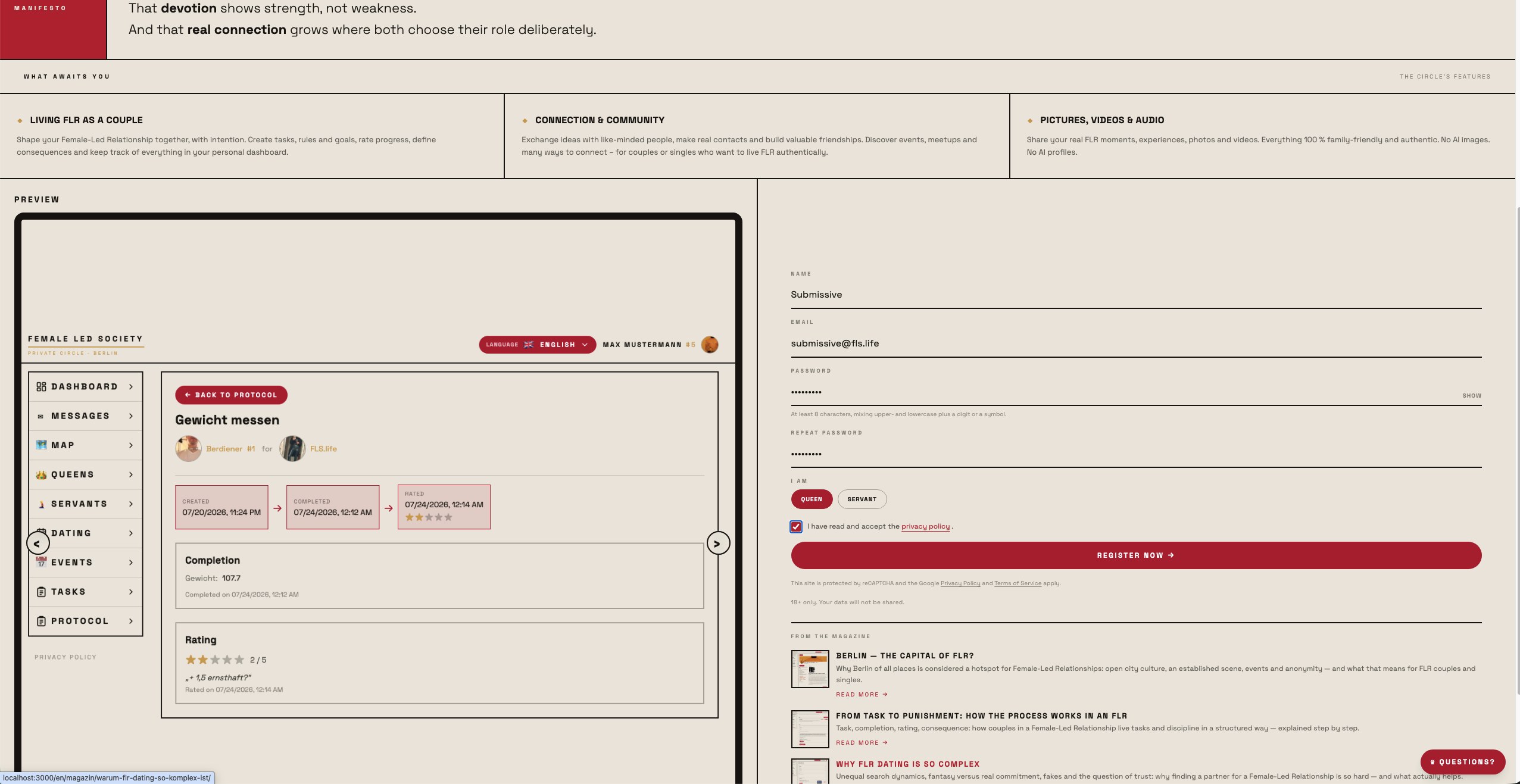
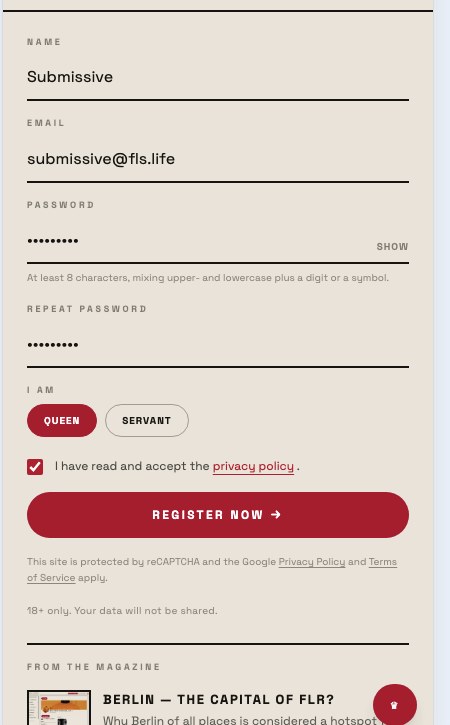
- Open www.fls.life. The registration form sits on the right of the home page, or further down on a phone.
- Enter your name and email address. Submissive uses the display name "Submissive" and the address
submissive@fls.life. - Choose a password and repeat it. At least eight characters, mixing upper- and lowercase plus a digit or a symbol.
- Pick your role under I am: Queen or Servant. Submissive picks Servant here, Femdom picks Queen later on.
- Accept the privacy policy and click Register now.
You can change your role later in your profile under I am — it is not a one-way street. But it decides how others find you and which fields your profile offers.
Confirming your email
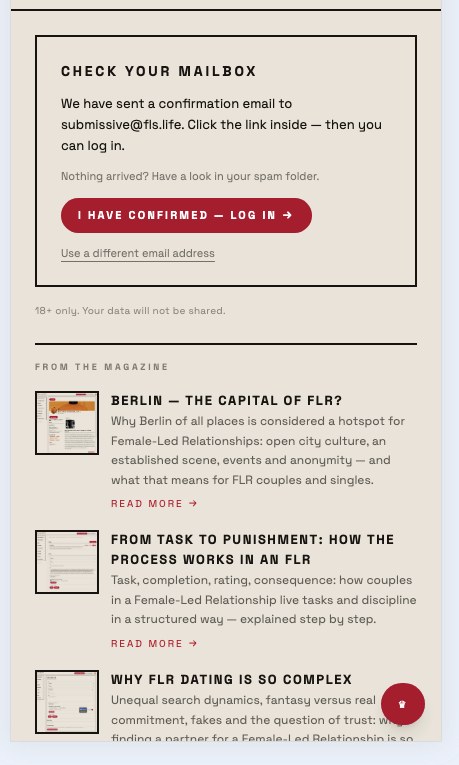
After submitting you stay on the home page for now:
A message from DoNotReply@fls.life arrives in your inbox:
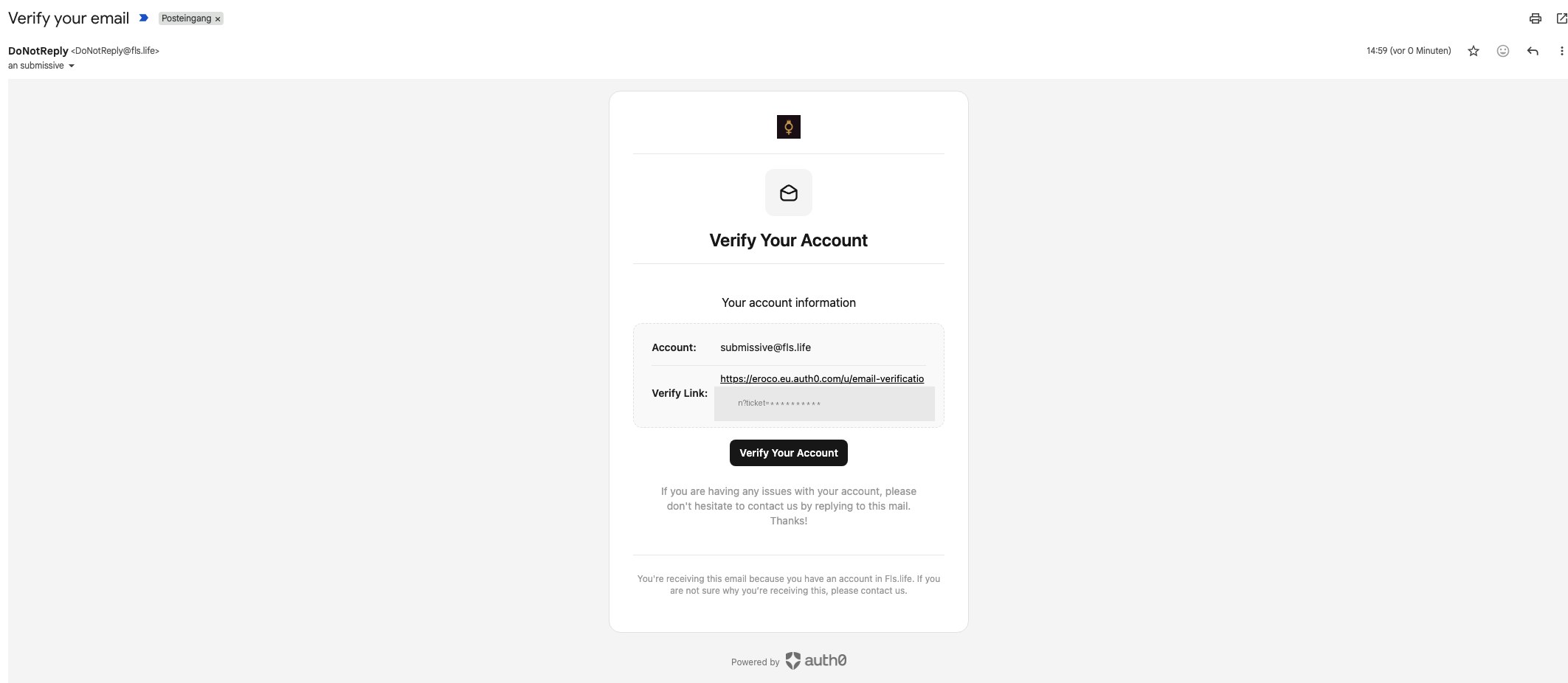
Click Verify Your Account. The link takes you to a confirmation page:
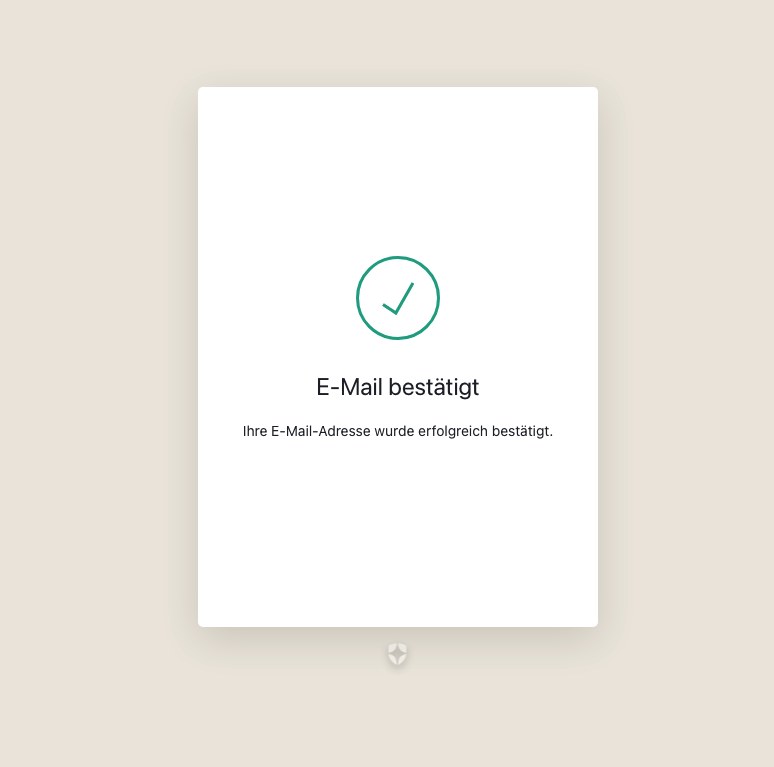
Only then can you log in. If the message does not arrive, check your spam folder — you can request it up to three times.
Logging in
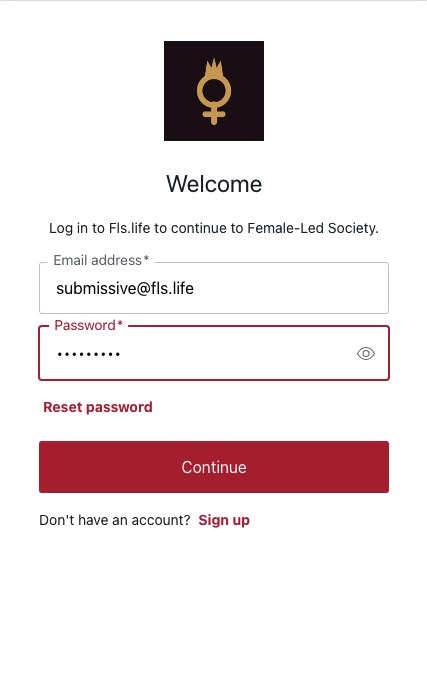
- Click Log in at the top right of the home page, or I have confirmed — log in in the registration panel.
- Enter your email address and password and click Continue.
- After logging in you land straight on your dashboard.
The dashboard
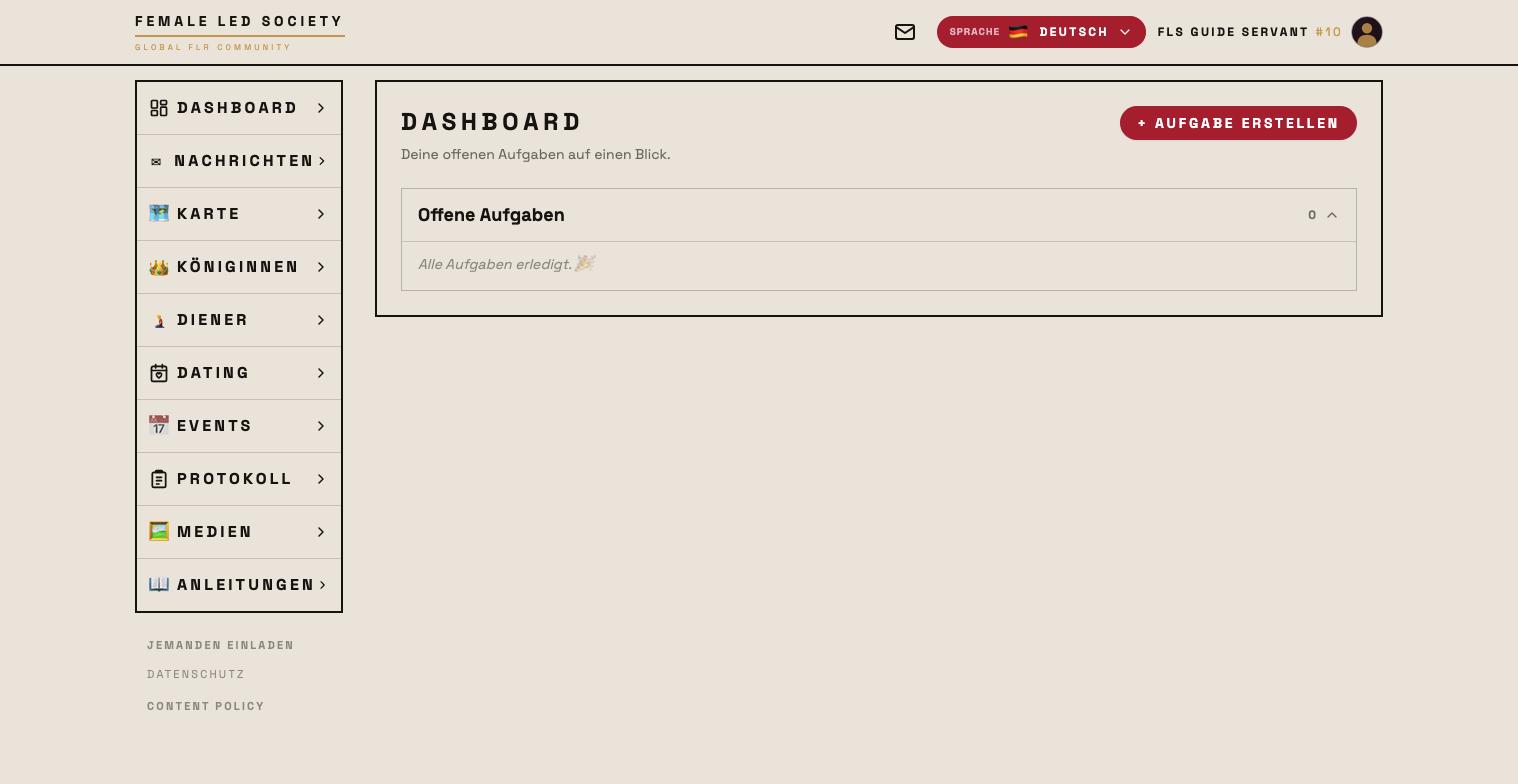
The dashboard is your home screen and shows everything that needs your attention right now. Which blocks appear depends on your role and on whether there is anything to do — empty blocks stay away.
Things waiting for a decision from you:
- Complete your profile — as long as a profile picture or your services are missing. Experience shows you will usually only be contacted once your profile is complete.
- Video rooms — rooms of events that are running or about to open (see Video rooms).
- Connection requests and Friend requests — with Accept and Decline.
- Event waitlist — requests to join your own events.
- Media access requests — who is asking for access to a protected medium.
Things coming up:
- Open tasks (for servants) or Tasks to rate (for queens).
- Completed recurring tasks — already done in the current period, open again in the next.
- Rules — permanently valid requirements.
- Missed tasks — with Attach punishment or Mercy.
- Open educational measures and the running chastity lock-up.
Use + Create task to add a new task straight from the dashboard (see the Tasks guide).
Navigation
On the left you find the main menu with every section: Dashboard, Messages, Map, Queens, Servants, Dating, Events, Protocol, Chastity and Media. On a phone, the same menu opens via the icon at the top left.
At the top right you can switch the language at any time (German, English, Spanish) and open your own profile via your profile picture; next to it an icon leads straight to Messages, with the number of unread ones.
Inviting someone
You can invite new members too. The invitation link is not a requirement for registering, but it is a convenient way to bring someone here directly:
- Click Invite someone at the bottom of the left-hand menu.
- Your personal invitation link is generated and copied to the clipboard automatically. If copying fails, the link is shown below for you to write down.
- Send the link to the person you want to invite — they register with it as described above.
Each link can be used once.
Questions before signing up
At the bottom right of the home page sits Questions? — behind it the Mistress of the House answers questions about the platform, drawing on the manuals and the magazine. She is there for people who do not have an account yet.
Your message is sent to an AI service to answer it. Do not enter personal data there.
Next step
Complete your profile first — it is your calling card in the community: Setting up your profile.