The Events area collects FLR and femdom gatherings — on a map and as tiles. Some take place on site, others online; a few meet right here in the portal, in a video room.
Note: The screenshots show the German interface — the layout is identical in every language.
Discovering events
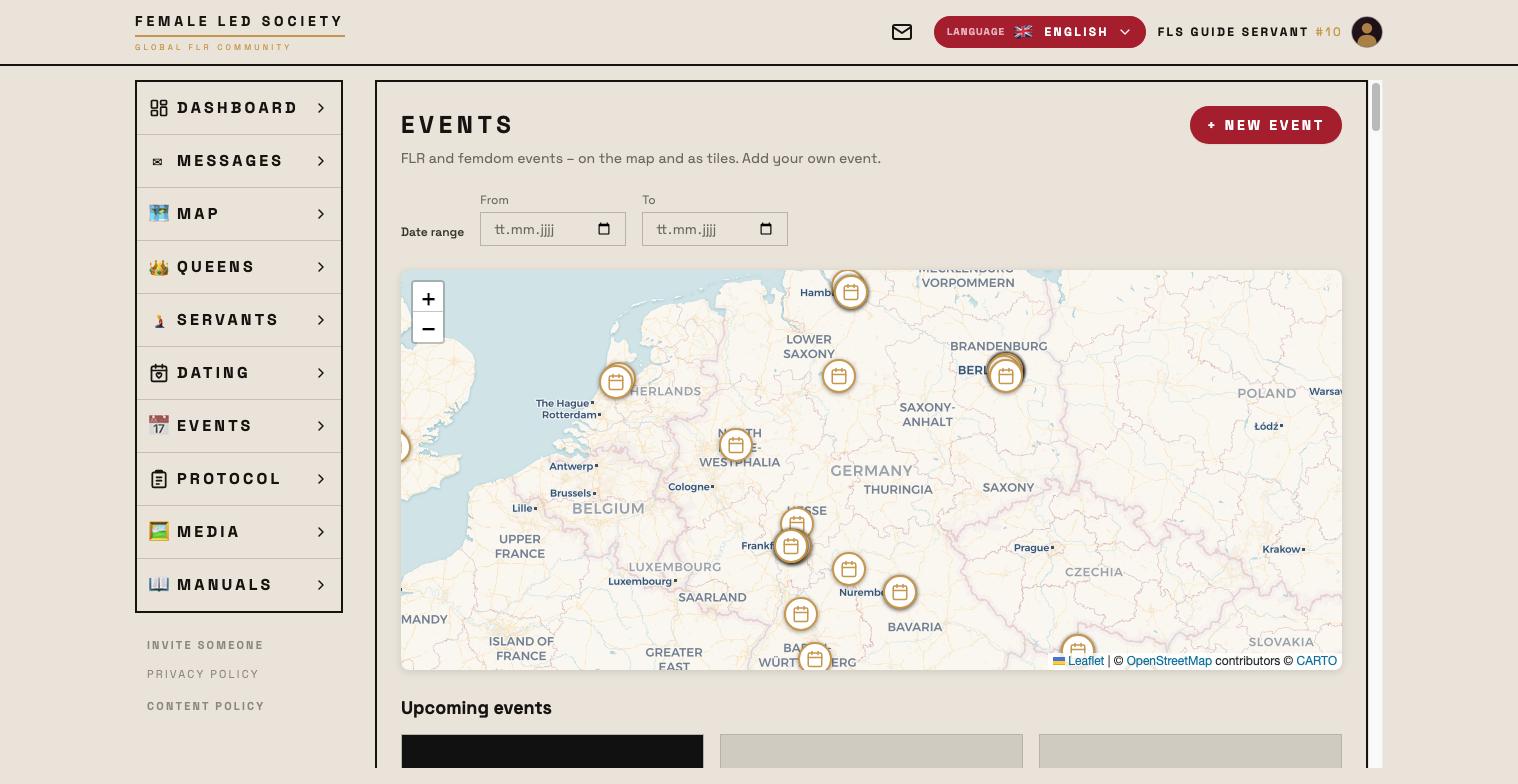
Open Events in the left menu.
The map at the top shows every event that has a location — click a marker to open it. Purely online events do not appear there.
Below are the tiles, in two blocks:
- FLS.life Events — take place right here in the portal, with a video room for those who joined.
- Upcoming events — everything else still ahead.
Past events disappear on their own: once the date has passed they drop out of the list, and a day later they are deleted for good — pictures and attendee list included.
Each tile shows title, date, location, distance, organizer and the number of people attending.
Narrowing the list
Two filters sit above the tiles, both effective immediately:
- All / Mine / Joined — Mine are the ones you host, Joined the ones you are on the list for. A pending waitlist request counts too, otherwise it would vanish from your own view.
- Date range with From and To — narrows things to a window of dates. It starts out as today until two weeks from now; to look further ahead, move To later or clear the field. Reset filters restores the default window.
If nothing is left it says No events in the selected period.
Viewing event details
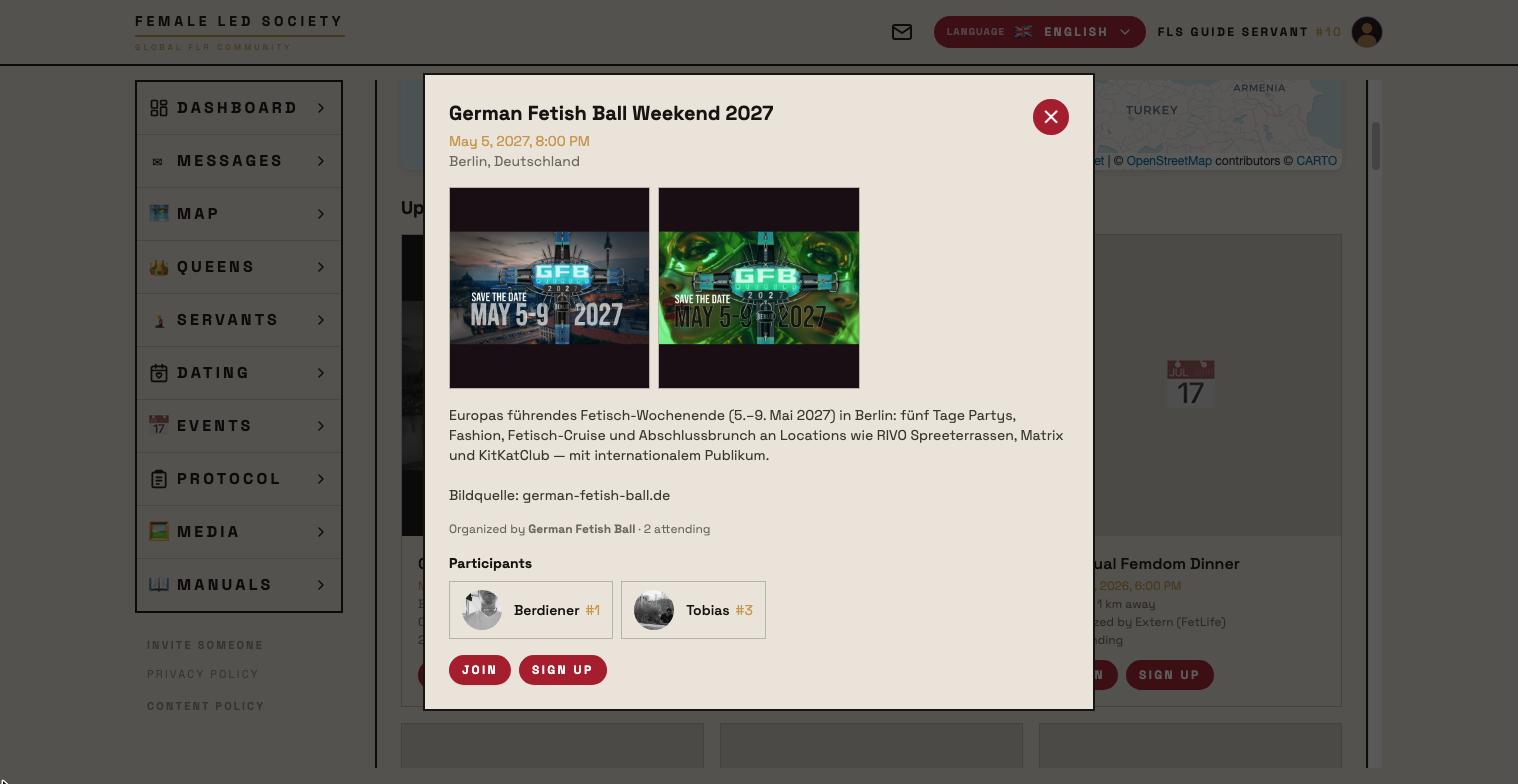
Clicking a tile opens the detail view with description, date and time, location or the Online marker, images and the organizer. In addition:
- Language(s) of the event — each named in its own language (Deutsch, English, Español), so they read the same in every interface language. Without a selection nothing is shown.
- Participants — who is attending, plus the number attending and, if applicable, · 3 on the waitlist.
Attending
What the button says depends on the event:
| Button | Meaning |
|---|---|
| Join | RSVP without a question — you are on the list right away. |
| Request to join | The event requires approval; you land on the waitlist. |
| Withdraw request | Takes a pending request back. |
| Cancel attendance | Undoes an existing RSVP. |
| Declined | The organizer turned the request down. |
External events additionally offer Sign up. That button leads out of the Female-Led Society, so a notice comes first: we are not responsible for the content or privacy practices of the destination. Your RSVP here does not replace the registration there.
For an event with an FLS video room this second path deliberately does not exist — signing up is the RSVP in the portal.
Sharing an event
The detail view offers Copy link, Share on Facebook and Share on X. The link leads to a public preview page that is readable without signing in and produces a preview with an image on social networks. Only the event's key facts are shown there — no participants, no profiles.
Adding your own event
Click + New event at the top right.
- Title and Description.
- Event date — date and time.
- Location — everything else follows from this:
- On site — search for a place and take it; the event then appears on the map.
- Online — then you choose between FLS video room (up to six people with camera and sound, right in the portal; you moderate it) and External link (the address of your own conferencing tool).
- Sign-up URL (external) — only needed if registration runs on someone else's site. With an FLS video room the field disappears.
- Language(s) of the event — several may be selected.
- Organizer — I am the organizer or External organizer with a name. A video room needs someone to moderate it, so with an external organizer it is not offered.
- Approval required — when checked, participants land on the waitlist first.
- Save. Only then can you upload images — the form switches straight into editing for that.
Managing RSVPs
For events that require approval the requests appear on your dashboard under Event waitlist, each with Approve and Decline. If you have a video room and are already sitting in it, you can answer the same requests right inside the room.
Your own events can be edited or deleted at any time.