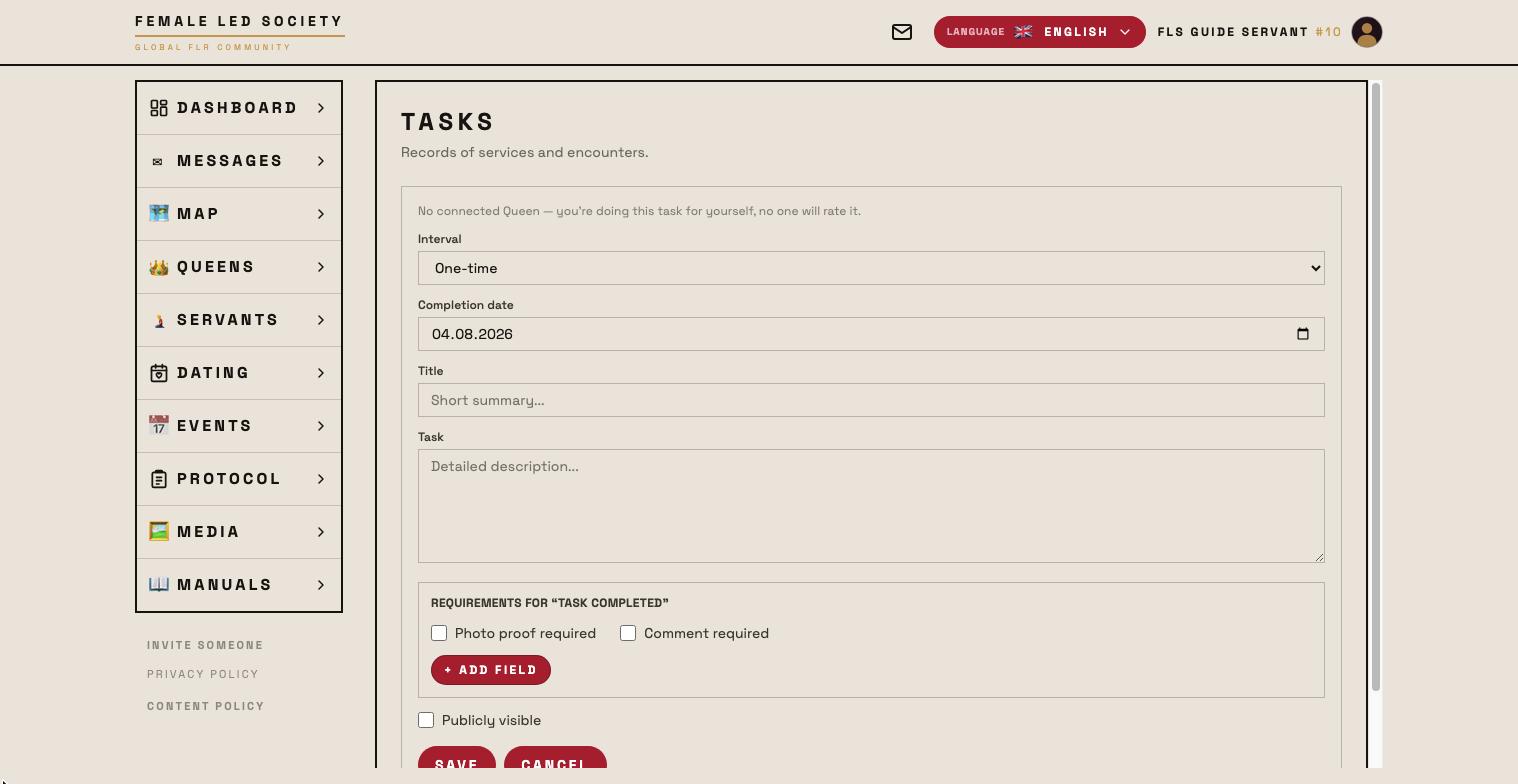
Tasks are the central tool of the service relationship: a queen assigns tasks to her connected servant, the servant completes them and is rated for it. Even without a connection you can create tasks for yourself — without a rating then.
As a running example, Femdom creates the task Lose weight for Submissive. It is right there in his profile under What I am working on: 96 kg at 182 cm, and he wishes for control.
Note: The screenshots show the German interface — the layout is identical in every language.
The goal first
A goal describes what several tasks are working towards together. It sits in the Tasks & Goals tab of the servant's profile, above the tasks.
- Click + New goal.
- For — the queen the goal applies to. A servant without a connection picks Myself (without a Queen) here.
- Goal — a short description. Femdom enters Weight down to 85 kg.
- Description (optional) — what it is about: starting value, target value, how it is checked.
- Save.
The goal appears as a card with its author's name and the number of linked tasks. A goal without a task achieves nothing — it is the bracket, not the instruction. Deleting a goal keeps its tasks; they only lose the link.
Creating a task
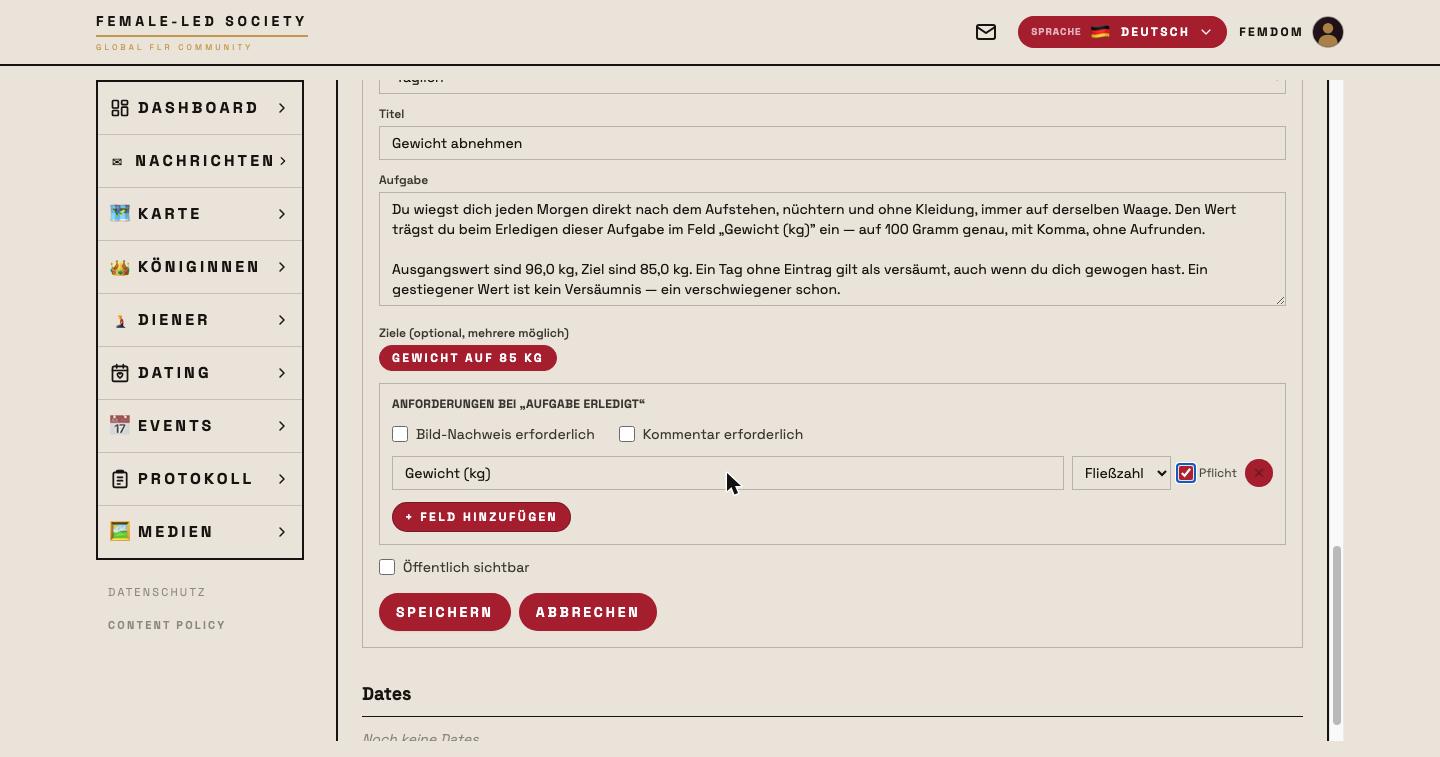
On the servant's profile, under Tasks, click + New task. It also works from your own dashboard: + Create task.
- Servant — fixed; it is the profile you are on.
- Interval — One-time, Daily, Weekly, Monthly or Rule. Recurring tasks are set again automatically after each due date. Femdom picks Daily.
- Completion date — by when the task has to be done. The field only exists for One-time.
- Title — a short summary: Lose weight.
- Task — the detailed instruction. The more precise, the less room for interpretation: when to weigh, on which scale, how exact the value has to be.
- Goals — click the goal you created earlier to link the task to it. Several are possible.
Requirements for “Task completed”
This block decides what the servant has to prove when finishing:
- Photo proof required — he has to upload at least one photo (up to five).
- Comment required — he has to leave a comment (max. 300 characters).
- + Add field — your own proof fields.
Each custom field consists of three settings:
| Setting | Meaning |
|---|---|
| Field name | The label in the completion form |
| Field type | Text, Yes/No, Integer or Decimal number |
| Required | Without an entry the task cannot be finished |
Femdom creates the field Weight (kg), picks Decimal number as the type and ticks Required. Decimal rather than integer, because 94.3 kg says something different from 94 kg — and required, because a day without a number would otherwise pass as done.
Field type and required cannot be read off the result later. Check both before you save.
Finally, optionally, Publicly visible — then task and results appear in the public protocol. Then Save.
The finished task
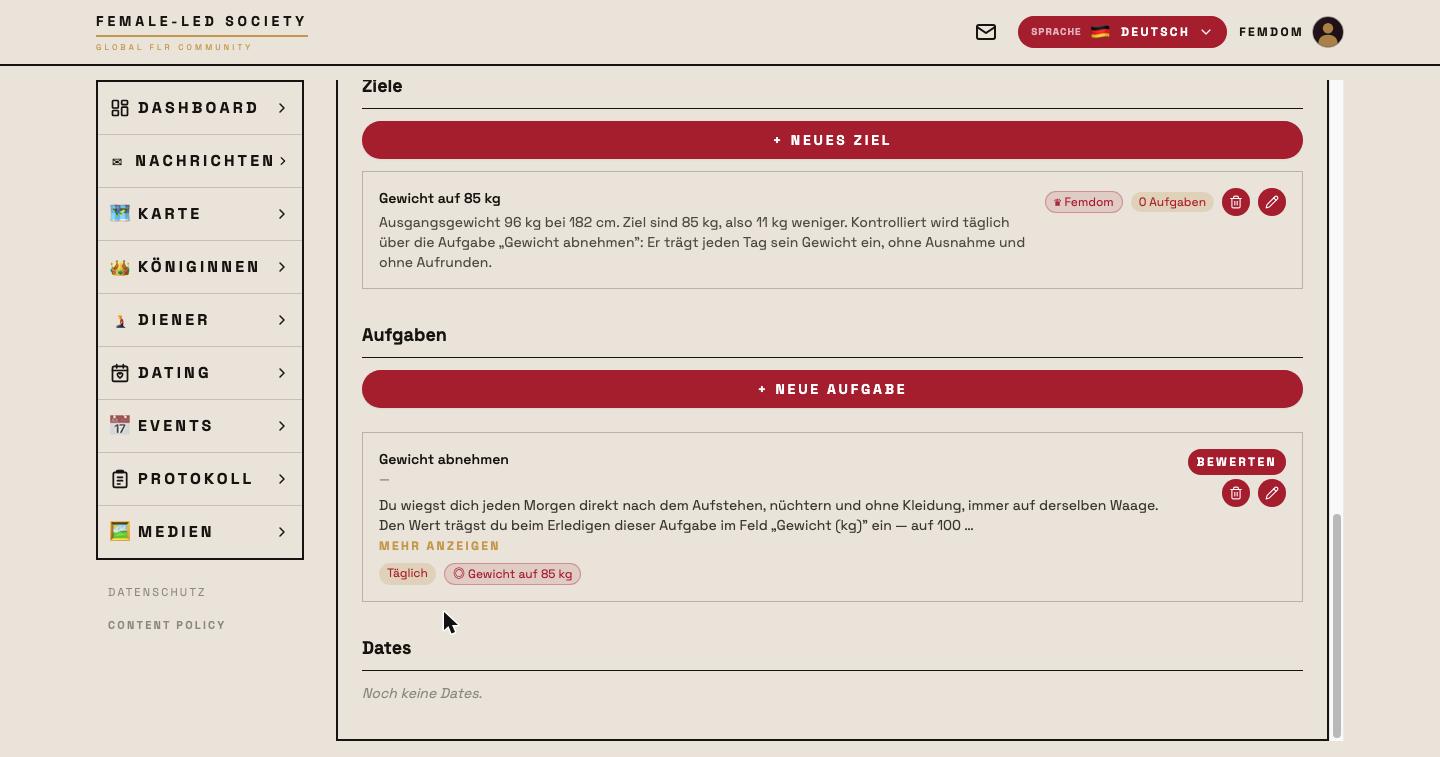
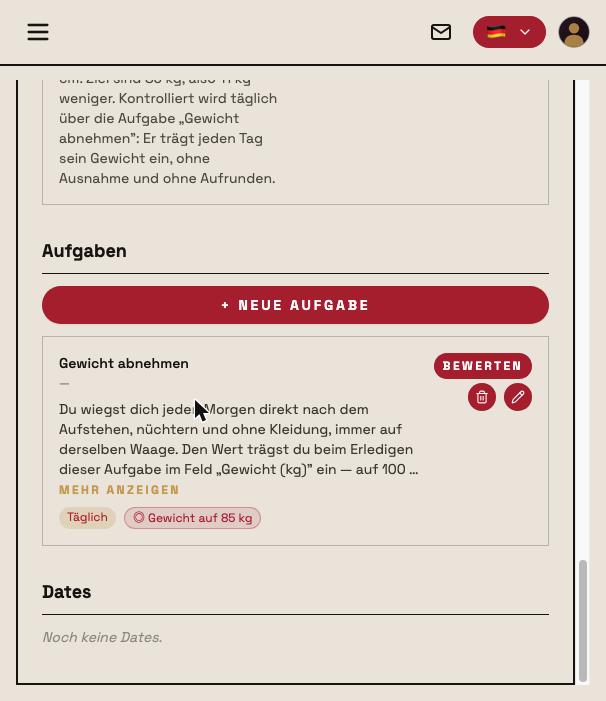
The task now carries two markers: the interval (Daily) and the linked goal (Weight down to 85 kg). The icons on the right let you edit or delete it; Rate opens the rating of submitted results.
Rules
The interval Rule is a special case: rules apply permanently. They cannot be marked as done and therefore do not show up under “Open tasks”, but in their own Rules block on the dashboard. The queen can rate them at any time.
If a rule has number fields, a series builds up over time: under Development of the numeric values the servant's profile draws the trend as a chart, optionally with the rating as a second line. The section only appears from two data points onwards.
Reporting a rule violation
Because a rule has no due date, it cannot be missed — nobody but the servant knows whether he kept it. His rule card therefore carries ✋ Report a rule violation.
The form asks for two things, both optional: the day of the violation (prefilled with today, up to 30 days back) and a short account (max. 300 characters). One report per rule and day is possible. If the rule has no queen, the button does not appear.
The report appears for both under Misses and violations — for the queen exactly like a missed task, with the same two options. As long as she has neither attached an educational measure nor granted mercy, the servant can remove his report again via ↩ Withdraw; after that it is gone without a trace.
Completing a task
For the servant the task appears on the dashboard under Open tasks.
- Click Mark as done.
- Fill in the required proof — for Submissive that means the required Weight (kg) field every day. A comma is accepted:
94,3is stored correctly as a decimal. - Optionally attach images (max. 5) and write a comment.
- Report as done. Without a required field the task cannot be finished.
Made a typo? Correct values fixes it; Change images swaps the proof photos.
Recurring tasks already finished in their current period move into the Completed recurring tasks block on the dashboard — in the next period they are open again.
Rating
The queen sees the submitted result under Tasks to rate and clicks Rate now.
- The rating runs from 1 to 10.
- A comment on the rating is possible (max. 300 characters).
- Submit rating saves it.
The rating feeds into the servant's placement in the ranking.
What a task shows over time
Clicking a task opens its detail page. At the top are the figures — Completed, Missed, Avg. rating and Completion rate — and below them the history with every single run, the comments from both sides and the charts for rating and completion.
Misses, rule violations, educational measures and mercy
If a recurring task is not completed in time, a nightly run (shortly after midnight, Berlin time) records the miss. It appears on both dashboards under Misses and violations — together with the rule violations the servant reported himself. A ⚠ marks a detected miss, a ✋ a self-report.
The queen then has two options:
- ⚖ Attach punishment — create a new educational measure or extend an existing one for this servant. It appears for the servant as its own item to work through and is recorded in the protocol.
- 🕊 Mercy — the miss is forgiven. It disappears from both lists but stays visible in the history.
The two are mutually exclusive: what has been forgiven cannot be punished afterwards — and vice versa.
Working through educational measures
An educational measure has a title, an optional description, the included measures from the catalog and an optional scheduled date. It collects the offenses that led to it.
Open measures appear on both dashboards under Open educational measures:
- The queen marks it as carried out — with an optional comment on the execution and a rating from 1 to 10, which may also be left out.
- The servant adds his comment on the execution.
- Adjust comment/rating lets either be corrected later.